CIMCO CNC-Calc v8 User Guide
CIMCO CNC-Calc v8 is an add-on for CIMCO Edit that enables novice programmers to draw 2D geometrical contours, lay out toolpaths for mill and lathe, and simulate the resulting NC program.
CIMCO CNC-Calc is a great tool for the operators and toolmakers who are untrained in the use of advanced CAD/CAM systems. For them, CIMCO CNC-Calc can help increase productivity and assist in the day-to-day NC programming. For a small company it can be the first step into the CAD/CAM world.
Table of Contents
Designed for usability and productivity
CIMCO CNC-Calc v8 is designed for ease-of-use that enables the user to draw contours fast and easily. It features common functions for drawing lines and circles in relation to the coordinate system and/or existing geometry. Functionality ranges from the plain "horizontal line" to the complex "circle tangent to three elements". It includes advanced trimming capabilities and an easy point and click approach for toolpaths layout.
CIMCO CNC-Calc v8 imports DXF files. From DXF files it is possible to generate toolpaths for lathe and mills, such as ISO, Fanuc and Heidenhain controllers. Other features include generation of user-defined compensation types like computer, controller, wear, and reverse wear.
Since CIMCO CNC-Calc is an integrated part of CIMCO Edit it is an easy task to view, edit, and simulate generated toolpaths. This enables the user to validate programs and thereby optimize the use of machine resources.
User Interface
CIMCO CNC-Calc can draw 2D geometry, and generate NC code in ISO and Heidenhain conversational format for contours and drilling cycles. The main program window (with an empty drawing pane) looks like this:
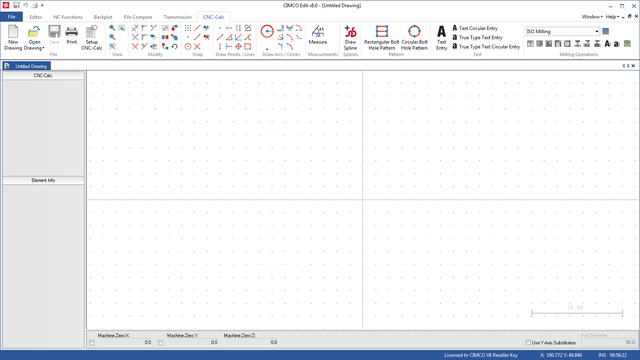
CIMCO CNC-Calc main window.
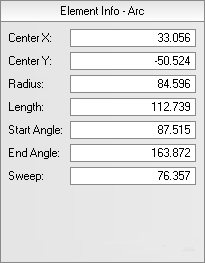
To the left of the drawing pane, you see the CIMCO CNC-Calc and Element Info panes. The CIMCO CNC-Calc pane shows coordinate entry fields and other information about the activity you are performing at any given time, while the Element Info pane shows the statistics of any element hovered over by the mouse. Below an example of the Element Info pane display is shown.
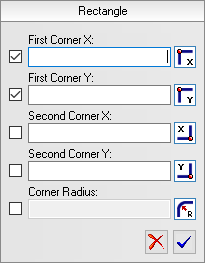
CIMCO CNC-Calc pane with entry fields.
Element Info pane with information.